User Manual
Introduction
AITHA Portal is an advanced IoT platform that lets you monitor, control, and manage connected devices in real time, including remote control through an intuitive web interface and a mobile app.
Key Features
- Real-time device monitoring
- Interactive dashboards with customizable widgets
- Alarms and notifications
- Remote device control
- Asset/device hierarchy management
Accessing the Platform
You can access the Portal via:
- Web interface:
https://portal.desarrolloselectronicos.com - Mobile app: download link coming soon
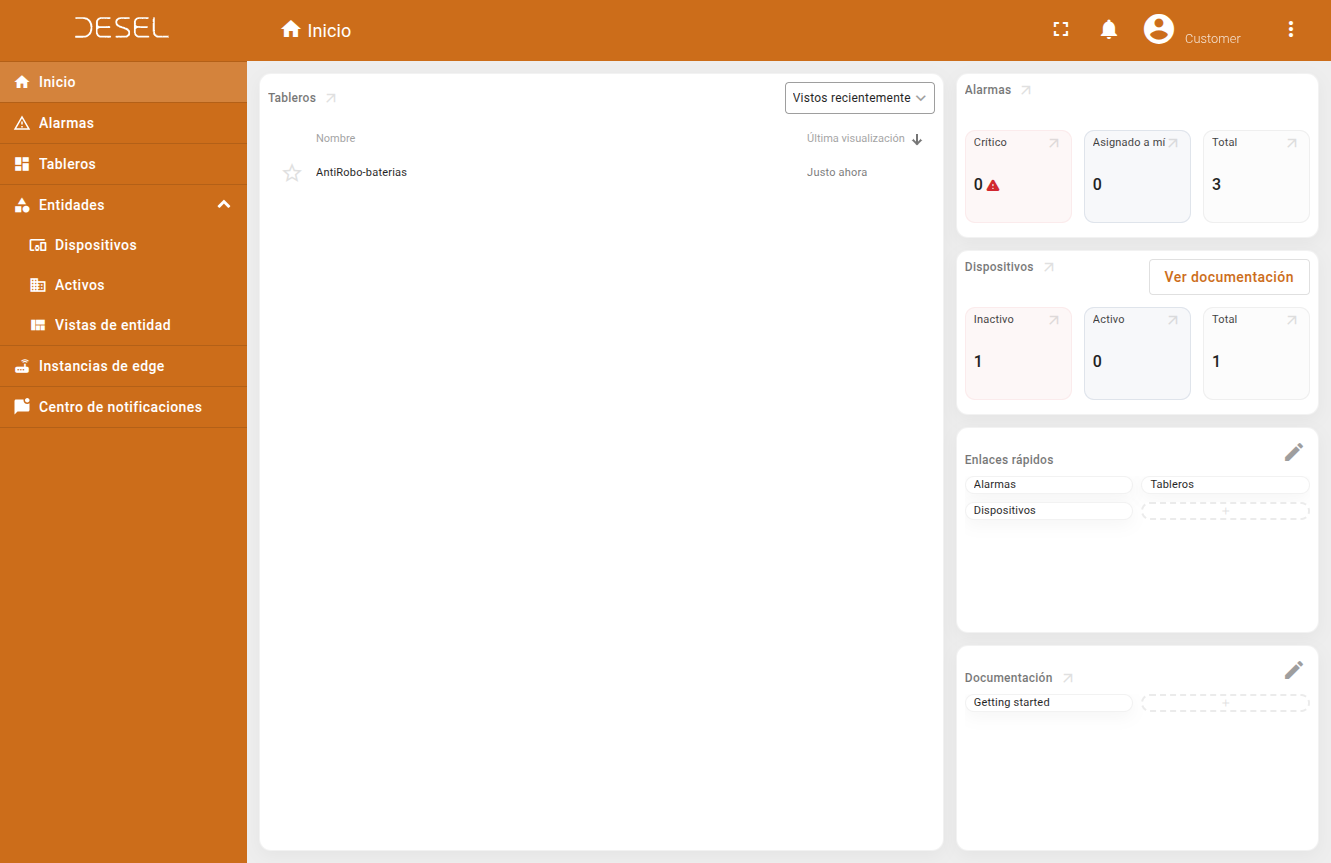
Home
The home dashboard provides an overview of all your devices and their current status.
Devices and Assets
Understanding the difference between devices and assets is key to using the platform effectively.
What is a Device?
A device is a physical hardware unit connected to the platform. Each device:
- Has a unique identifier
- Sends telemetry (sensor readings, status information)
- Can receive commands via RPC
- Belongs to a specific asset
What is an Asset?
An asset is a logical grouping or location that contains one or more devices. Assets help you organize devices hierarchically:
- Example: A warehouse (asset) may contain multiple security sensors (devices)
- Example: A vehicle (asset) may contain a GPS tracker and a temperature sensor (devices)
Viewing Devices
To view your devices:
- Navigate to Entities / Devices in the main menu
- You will see a list of all devices you have access to
- Click any device to see details
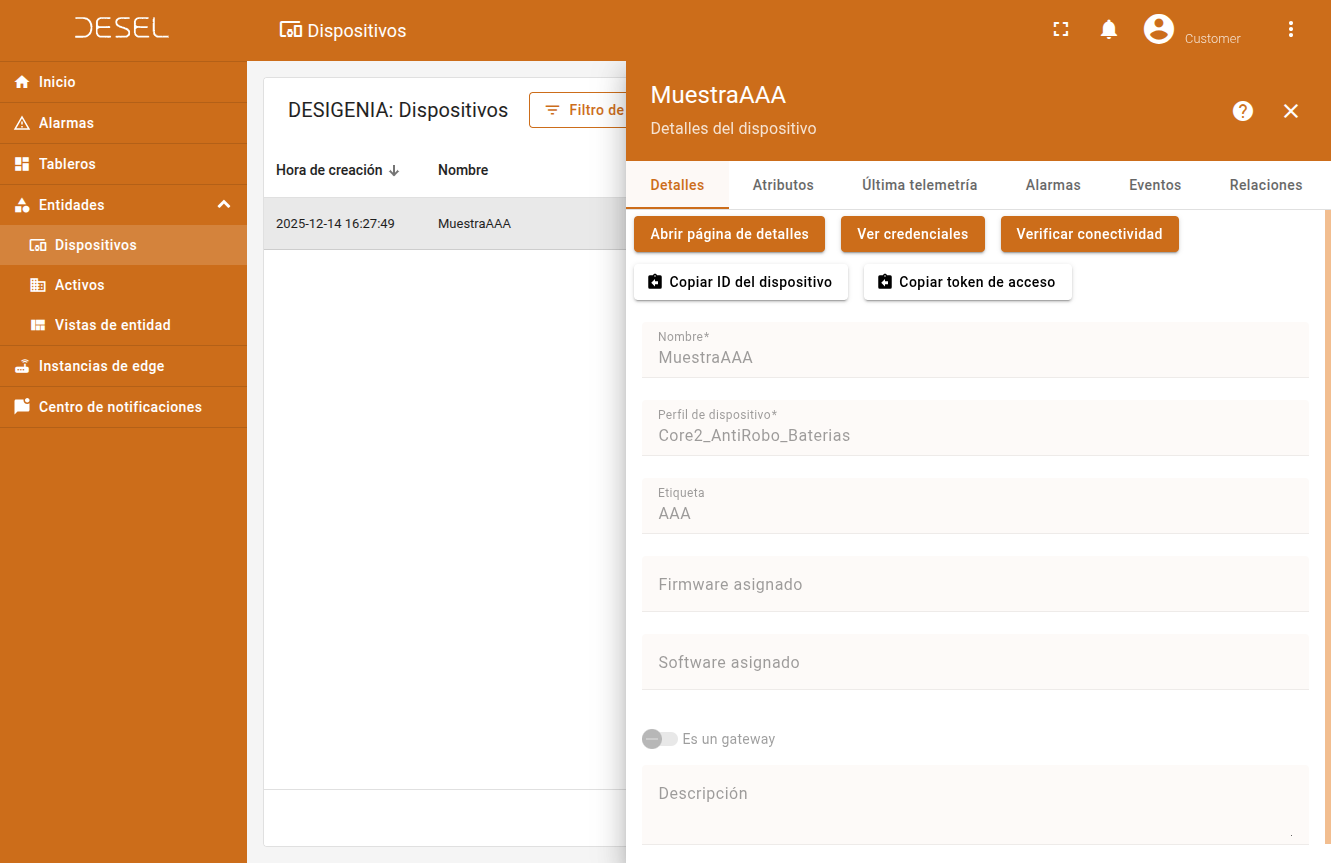
Device Details
The device details view shows:
- Details - Online/offline indicator
- Latest Telemetry - Most recent sensor readings
- Attributes - Device configuration and metadata
- Alarms - Active alarms for this device
- Events - Recent events and commands
Monitoring Your Devices
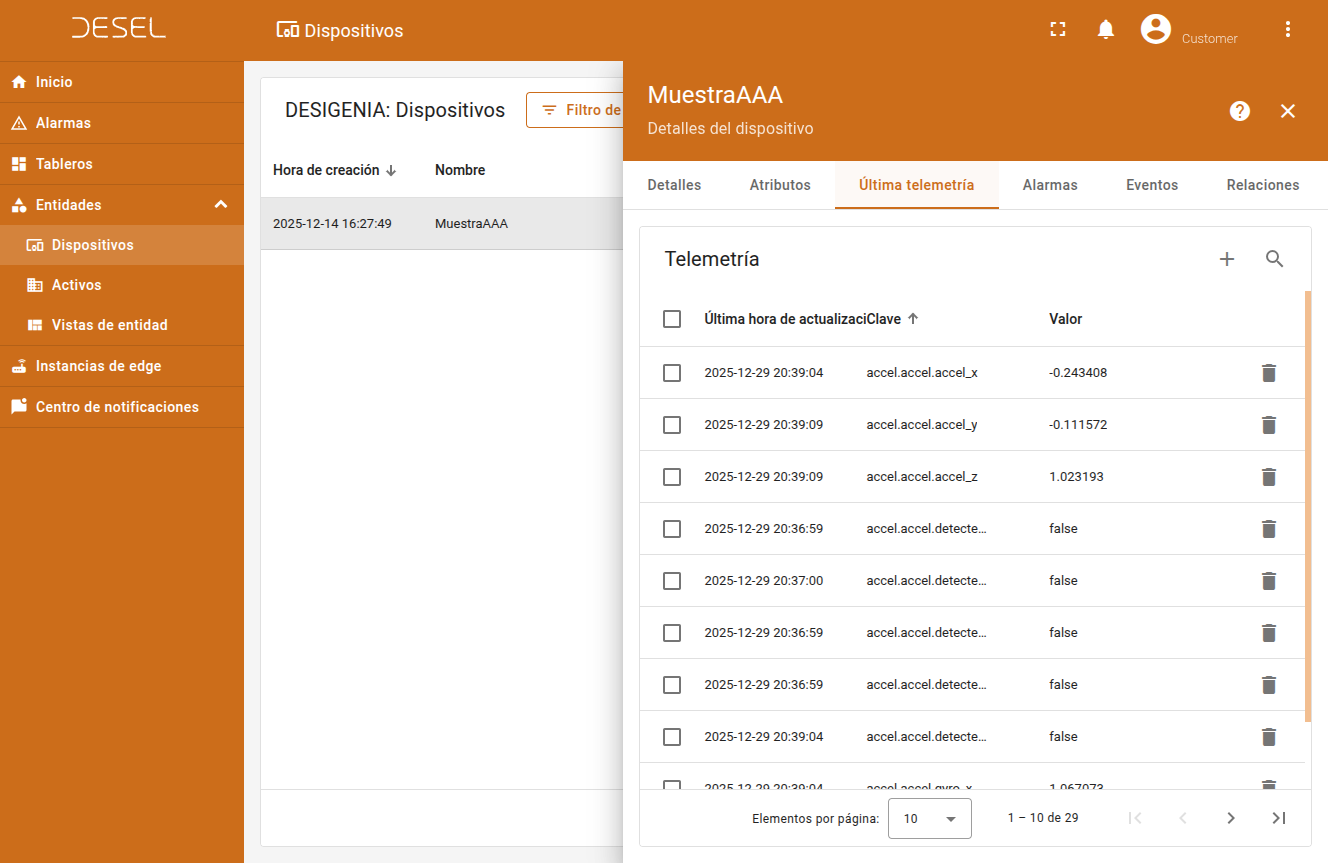
Understanding Telemetry
Telemetry is real-time data sent from your devices to the platform.
This includes:
- Sensor readings (temperature, humidity, location, etc.)
- Status information (battery level, connection status, etc.)
- Event notifications (motion detected, alarm triggered, etc.)
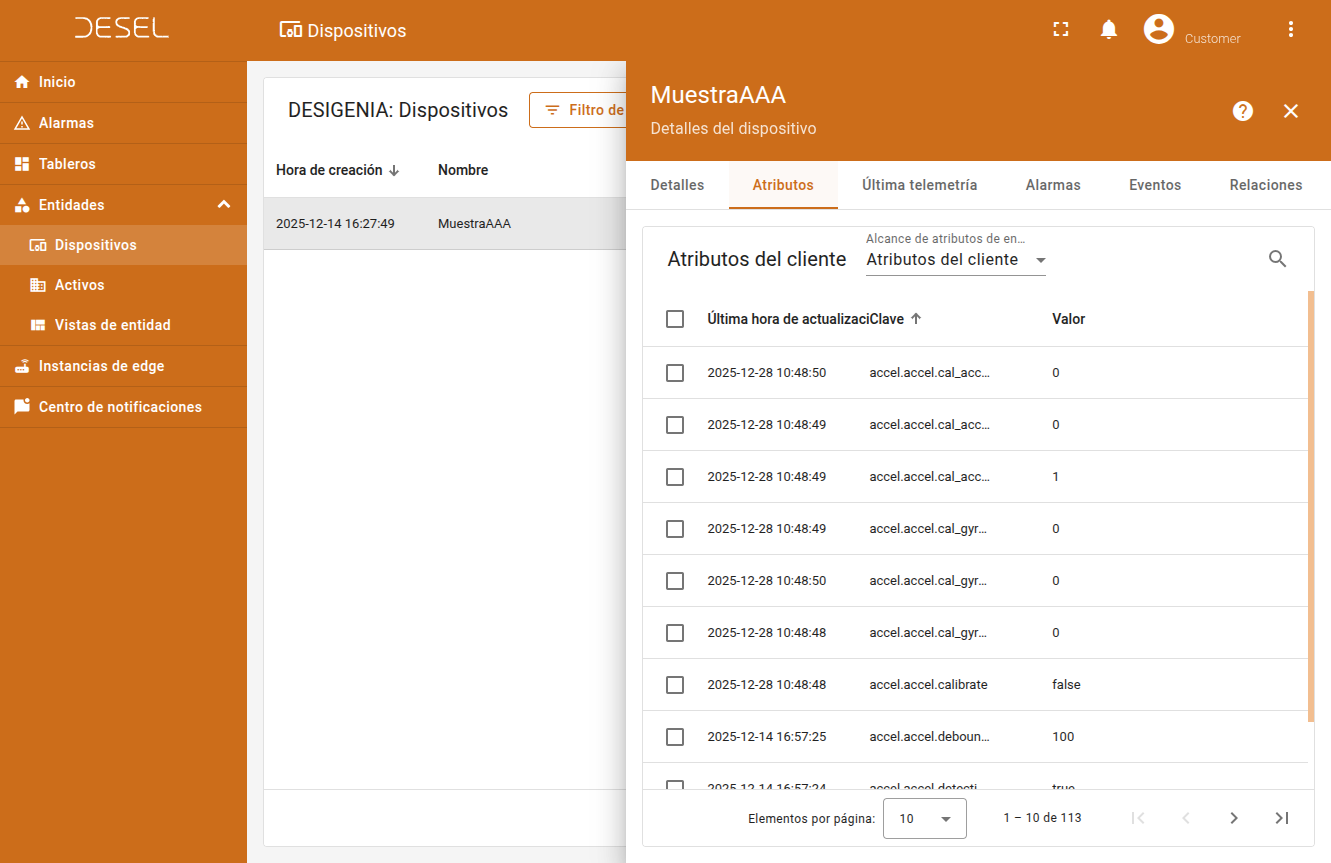
Understanding Attributes
Attributes are configuration parameters and metadata associated with a device:
- Server attributes - Set by the platform
- Shared attributes - Configuration sent to the device
- Client attributes - Reported by the device
Alarms and Notifications
The alarms system helps you stay informed about important events and conditions.
What Are Alarms?
Alarms are automated notifications that trigger when specific conditions are met.
Your tenant administrator configures alarm rules based on:
- Telemetry thresholds (e.g., motion detected, impact detected)
- Device state changes (e.g., device disconnects)
You can view alarms from a device detail page or from a dedicated dashboard.
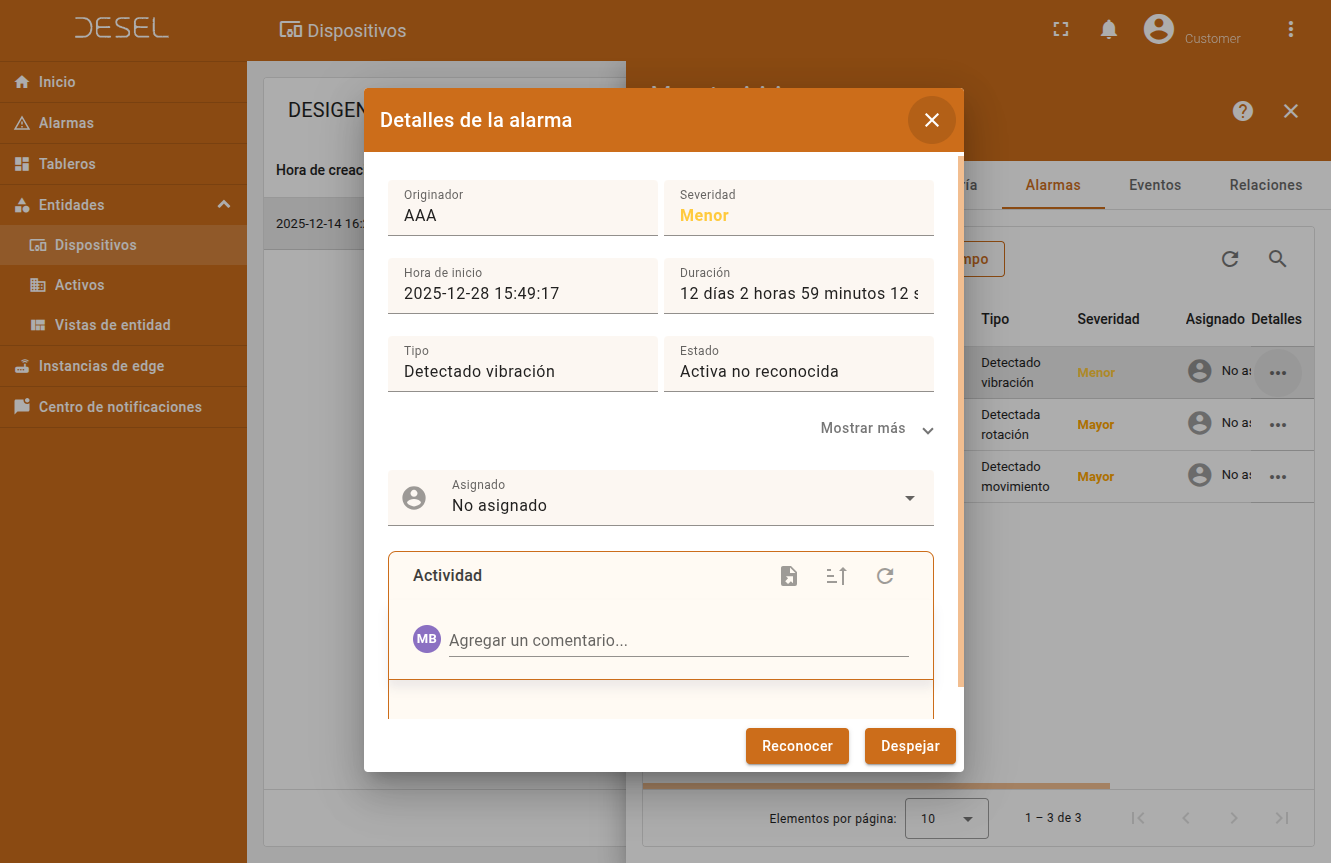
Alarm States
Alarms have three states:
-
Unacknowledged (Active) - New alarm that has not been reviewed
- Sends notifications to configured users
-
Acknowledged - The alarm was reviewed but not resolved
- Marked by a user as "seen"
-
Cleared - The alarm is resolved
- Cleared automatically based on the configured condition, or cleared manually
- Moved to the alarm history
Managing Alarms
From the alarms list
- Navigate to Alarms in the main menu
- View all active alarms on your devices
- Click an alarm to view details
- Use the action buttons to:
- Acknowledge - Mark as reviewed
- Clear - Mark as resolved
From a dashboard
Many dashboards include alarm widgets that show:
- Active alarm count
- Recent alarms
- Alarms by severity (Critical, Major, Minor, Warning)
Click any alarm in the dashboard to view details and take action.
Alarm Notifications
When an alarm triggers, notifications may be sent via:
- In-app notifications - Visible in the web UI and mobile app
- Email - Sent to configured email addresses
- Push notifications - Mobile app alerts (if configured)
Note: Notification settings are configured by your tenant administrator. Contact them to change notification preferences.
Dashboards
Dashboards are customizable views that show real-time device data and control widgets.
Dashboard Widgets
Dashboards are composed of widgets that display different types of information:
- Charts - Time-series visualization
- Maps - Device location
- Cards - Key metrics and status indicators
- Tables - Detailed device lists
- Controls - Interactive buttons and toggles
Navigating Dashboards
- Use the sidebar to open the Dashboards section
- Select one of the available dashboards
- Click widgets to drill down into detailed views or controls
- Customize widget layouts (if you have tenant admin permissions)
Specialized Dashboards
In addition to standard device monitoring, AITHA includes specialized dashboards for specific use cases.
Battery Anti-Theft Dashboard
The Battery Anti-Theft dashboard is a complete solution to monitor and protect battery assets.
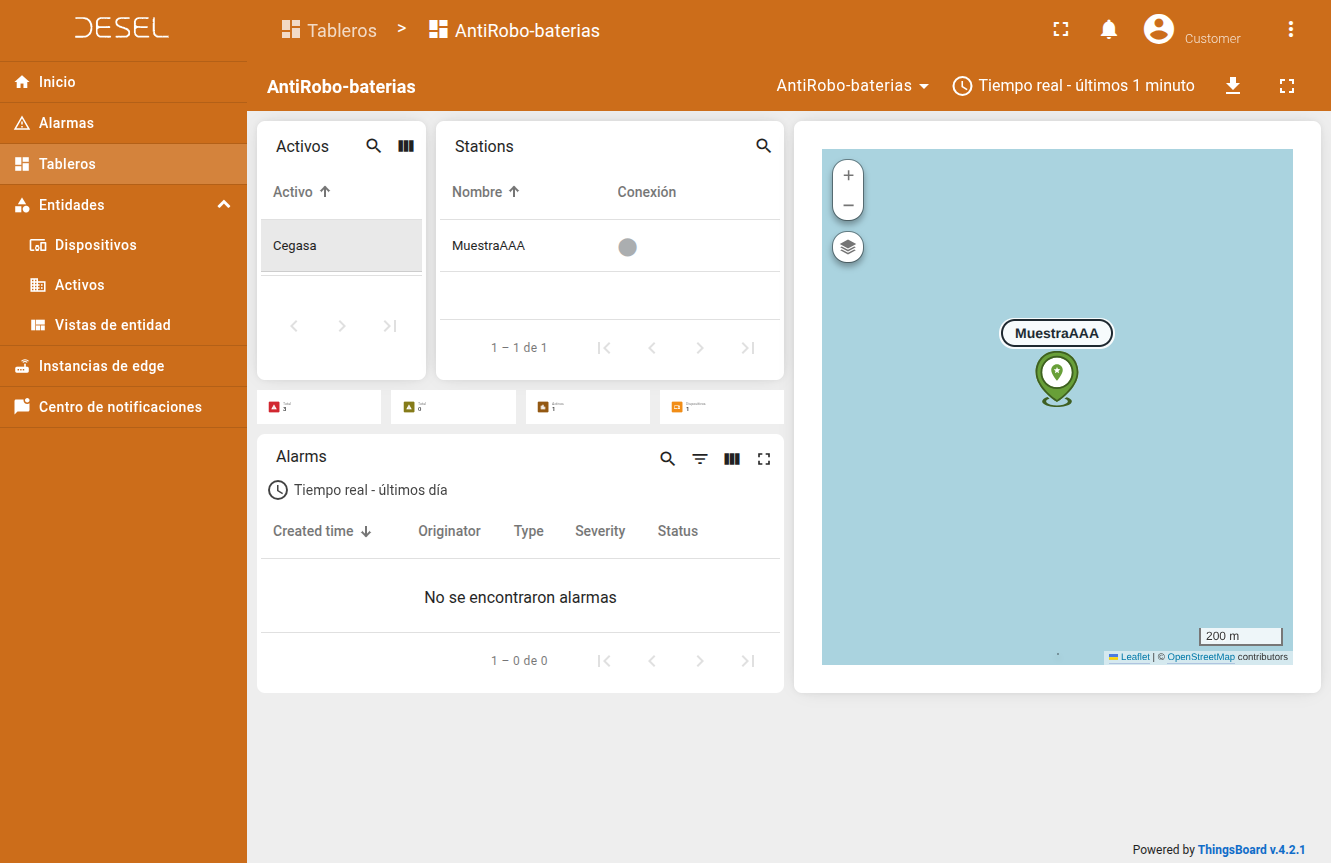
Key features:
- Real-time GPS tracking
- Motion and impact detection
- Automated theft alerts
- Remote relay control
- Historical movement tracking
Tip: For detailed instructions, see the Battery Anti-Theft Guide.
Creating Custom Views
If you have tenant admin permissions, you can:
- Create new dashboards
- Add and configure widgets
- Configure custom alarm rules
- Define device groups and hierarchies
Contact your tenant administrator for help creating custom dashboards.
Need Help?
- 📖 Quickstart: See the Quickstart Guide.
- 📱 Mobile app: Use the built-in help section in the main menu.
- 🔧 Support: Contact your administrator or visit Desarrollos Electronicos.
For hardware setup and RPC commands, see the Advanced Guide.